Clustering Tab
The Clustering Tab allows you to group similar events based on selected metadata features using clustering algorithms such as HDBSCAN and Gaussian Mixtures. It is designed to uncover patterns and groupings within large sets of fitted nanopore event data.
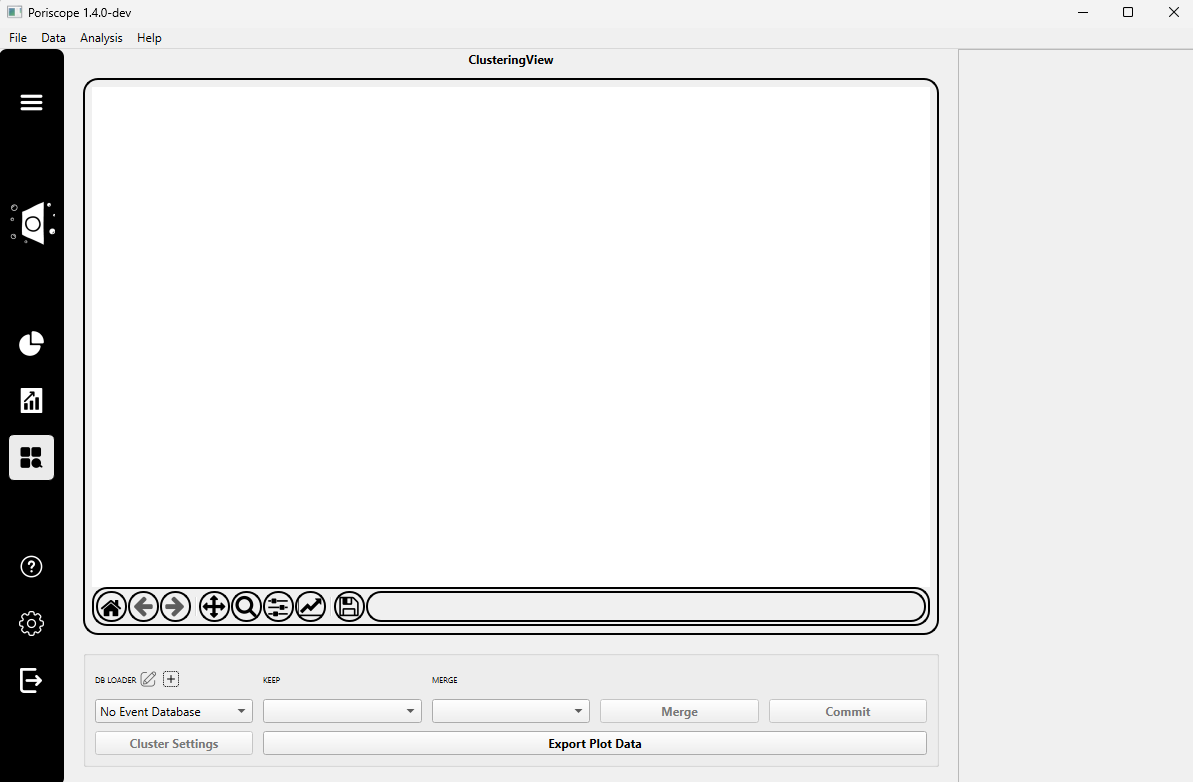
Step 1: Load Metadata Database
Click the ➕ DB Loader button to select your metadata SQLite database file.
If you have previously loaded DB files, they will automatically appear.
Step 2: Configure Clustering Settings
Click the Cluster Settings button.
Inside the dialog:
Select Method: Choose one of the following:
HDBSCAN:
HDBSCAN stands for Hierarchical Density-Based Spatial Clustering of Applications with Noise. It groups data points based on density and can automatically find clusters of varying shapes and sizes. It also labels low-confidence points as noise.
It requires the following parameters:
Cluster Size: The minimum number of points a group must contain to be considered a cluster. Larger values result in fewer, larger clusters.Min Points: Determines how conservative the algorithm is when defining cluster boundaries. A higher value increases the density required to form a cluster.Sensitivity: Adjusts how strict the algorithm is when identifying core cluster regions. Lower values make it easier to form clusters; higher values tighten the definition.
HDBSCAN is great for discovering natural groupings in your event data without needing to pre-specify the number of clusters.
Gaussian Mixtures:
Gaussian Mixture Models (GMMs) assume that the data is generated from a combination of several Gaussian (normal) distributions.
It requires the following parameter:
Number of Clusters: The number of Gaussian components (clusters) to fit to the data. You must specify this number manually.
GMMs work well when your data fits the assumption of normally distributed clusters and you have an idea of how many groups to expect.
Apply Filter (optional): Narrow down which events are included by writing a simplified SQL-like condition.
Example:
duration > 200 and max_blockage < 800Select Columns: Choose a metadata column to use for clustering.
You may optionally enable:
LOG: Apply log10 scaling.
NORM: Normalize using median absolute deviation.
PLOT: Include in the clustering visualization.
Add Column: The dialog starts with two column rows, and every row is used. Add Column adds another, up to 8.
Note
Apply stays disabled until a method is chosen and each of its parameters holds a valid value, every row has a column, and 2 or 3 rows are ticked PLOT; the line above the buttons says what is missing. The parameters take scikit-learn’s own minimums:
Cluster Sizeat least 2,Min PointsandNumber of Clustersat least 1, andSensitivityat least 0.Click Apply to launch the clustering process, or Cancel to discard changes.
Note
Anything that stops a clustering run is reported on the status panel: a filter the
database rejects is shown with the database’s own message — an unknown column, a
syntax error, a complete SELECT pasted into the filter box — a query that matches
no rows says so, and a column the loader did not return is named rather than failing
somewhere inside the clustering algorithm.
Step 3: Merge Clusters (Optional)
After clustering is complete:
Use the
KEEP LABELandMERGE WITHdropdowns to select two clusters.Click Merge to reassign all events in the
MERGEcluster to theKEEPcluster.
Step 4: Commit Cluster Labels
Click Commit to write the clustering results to your metadata database.
Adds two new columns:
cluster_labelandcluster_confidence.If the table already contains clustering data, you will be prompted before overwriting.
Step 5: Export Plot Data
Click Export Plot Data to save the current clustering visualization as a csv file.